On this page
- How to Convert an AI-Generated Logo to Vector (AI, SVG & EPS)
- Why Does an AI-Generated Logo Need Vector Conversion?
- How to Convert an AI Logo to Vector Using Adobe Illustrator
- Automatic Tracing vs. Manual Vector Redrawing
- What Is the Difference Between AI, SVG and EPS?
- Common Mistakes When Converting AI Logos
- When Should You Hire a Professional Vector Tracing Service?
- Need Your AI Artwork Converted to Vector?
- Frequently Asked Questions
- Final Thoughts
- Ready to Vectorize Your AI-Generated Logo?
How to Convert an AI-Generated Logo to Vector (AI, SVG & EPS)
AI tools like ChatGPT, Gemini and Grok make creating logo concepts easier than ever. However, most AI-generated logos are delivered as PNG or JPG images rather than editable vector artwork.
To convert an AI logo to vector, you need to recreate its visual elements as editable vector paths using software such as Adobe Illustrator or a professional vector tracing service. The result can be exported into AI, SVG and EPS formats for different branding and production requirements.
Here's how to do it correctly.
Why Does an AI-Generated Logo Need Vector Conversion?
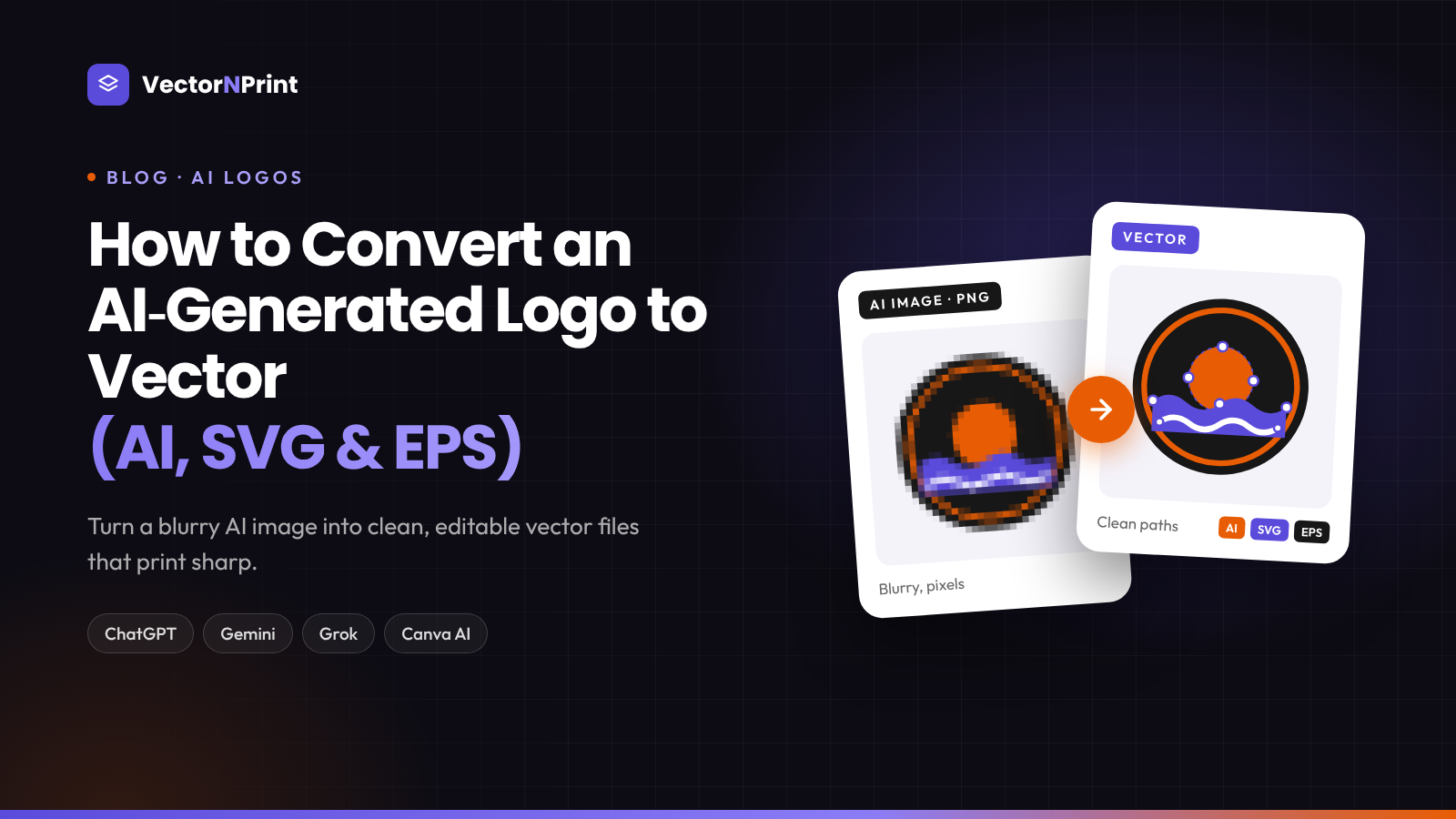
Most AI-generated logos are raster images. They consist of individual pixels, meaning they can become blurry when enlarged.
Vector graphics work differently. They use mathematical paths, curves and shapes that maintain their sharpness at virtually any size.
For example, a logo created using ChatGPT might look perfectly clear on your computer screen. However, when a print shop enlarges it for a storefront sign, the edges may become pixelated.
A properly reconstructed vector logo solves this problem.
It also makes it easier to:
- Change individual colors.
- Edit shapes and lettering.
- Prepare artwork for screen printing.
- Create graphics for embroidery digitizing.
- Produce large-format signage.
- Maintain consistent branding across different materials.
How to Convert an AI Logo to Vector Using Adobe Illustrator
Adobe Illustrator offers an Image Trace feature that converts raster images into editable vector artwork.
Follow these steps.
Step 1: Download Your AI-Generated Logo
Export your logo from ChatGPT, Gemini, Grok or another AI image generator.
Whenever possible, use the highest-resolution PNG available. A transparent background is preferable, although a solid background can also be removed during editing.
Step 2: Import the Image into Illustrator
Open Adobe Illustrator and create a new document.
Go to File > Place and select your AI-generated logo.
Position the image on your artboard.
Step 3: Use Image Trace
Select your image and open Window > Image Trace.
Choose an appropriate preset depending on your artwork.
For simple logos:
- Black and White Logo: Suitable for monochrome designs.
- 3 Colors: Useful for simple, flat-color artwork.
- High Fidelity Photo: More appropriate for detailed images than conventional logos.
Adjust the tracing settings to control colors, paths, corners and noise.
Step 4: Expand and Edit the Artwork
Once the tracing looks acceptable, click Expand.
Your traced artwork will become editable vector objects.
Use the Direct Selection Tool to inspect individual anchor points and correct unwanted shapes.
Pay particular attention to lettering, curved edges and small details.
Step 5: Export Your Vector Files
Once your artwork is cleaned and checked, save it in the required formats:
- AI: Editable Adobe Illustrator source file.
- SVG: Suitable for websites and digital applications.
- EPS: Commonly requested for professional printing and production.
Remember that exporting a file into SVG or EPS does not automatically improve its underlying vector quality.
Automatic Tracing vs. Manual Vector Redrawing
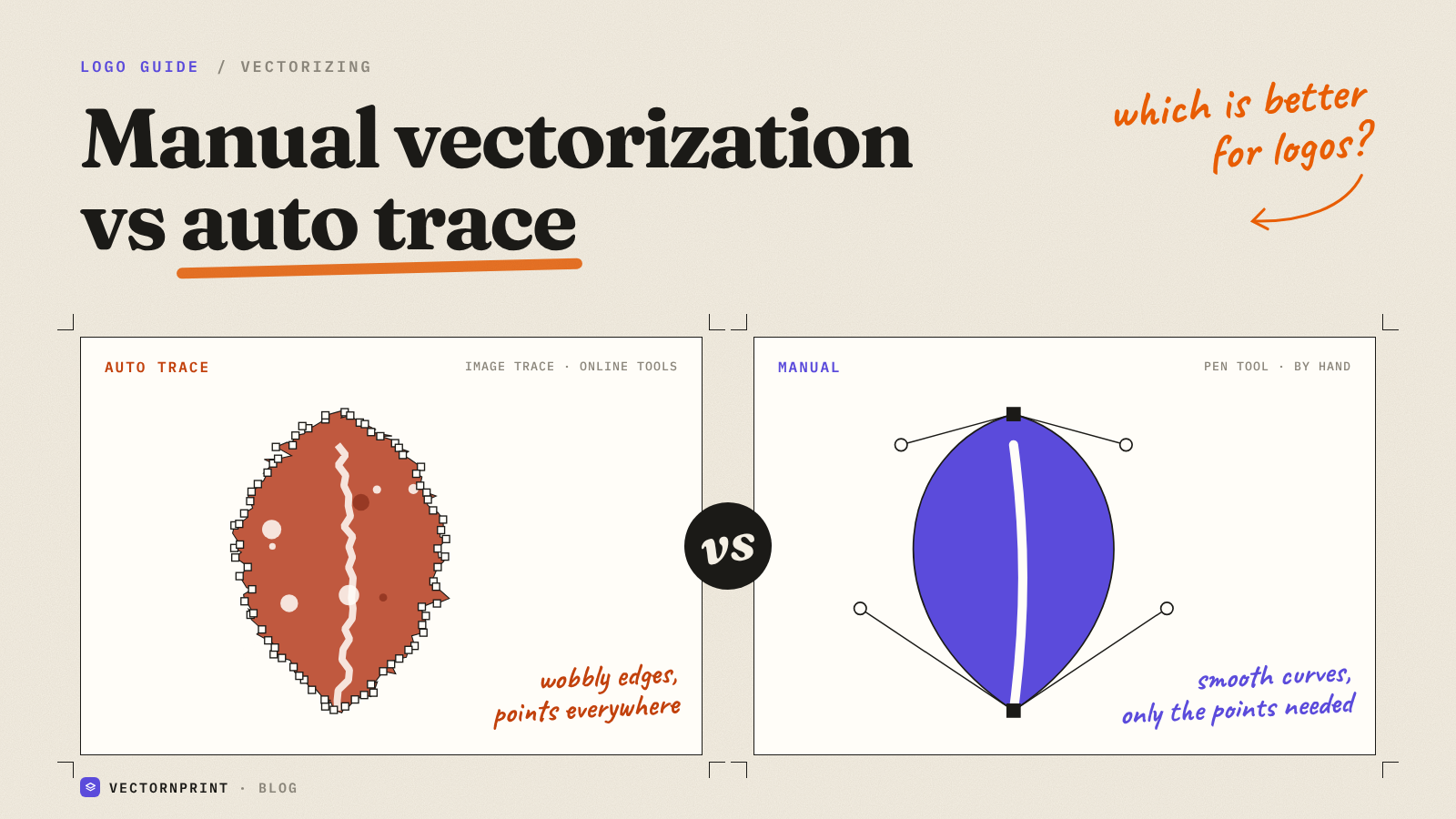
Image Trace is convenient, but it doesn't always produce professional results.
AI-generated logos frequently contain irregular lettering, inconsistent curves, overlapping shapes and unnecessary details.
Automatic tracing follows the visible pixel boundaries. It does not understand the original designer's intended geometry.
| Feature | Automatic Tracing | Manual Redrawing |
|---|---|---|
| Conversion speed | Fast | Depends on complexity |
| Curve precision | Variable | Carefully controlled |
| Typography correction | Limited | More control |
| Anchor points | Often excessive | Optimized |
| Shape consistency | May require cleanup | Precisely reconstructed |
| Production readiness | Requires inspection | Can be prepared for specific production needs |
Professional recommendation: Use automatic tracing for simple graphics and initial drafts. For important brand logos, detailed illustrations and commercial printing, consider manual vector reconstruction.
What Is the Difference Between AI, SVG and EPS?
These formats serve different purposes.
AI (Adobe Illustrator): Best for maintaining an editable source file. Designers can modify shapes, colors, typography and individual elements.
SVG (Scalable Vector Graphics): Ideal for websites, applications, digital branding and other screen-based applications.
EPS (Encapsulated PostScript): Frequently used in established professional print and production workflows.
For a business logo, keeping all three formats provides greater flexibility.
One important detail: an SVG or EPS file can still contain an embedded raster image. Always check that the artwork consists of actual editable vector paths.
Common Mistakes When Converting AI Logos
Avoid these problems when preparing your logo:
- Ignoring distorted typography: AI-generated lettering can contain inconsistent spacing and incorrectly shaped characters.
- Keeping unnecessary anchor points: Excessive points make curves difficult to edit and can create uneven edges.
- Using automatic tracing without cleanup: The resulting artwork may contain overlapping shapes, unwanted outlines and rough edges.
- Ignoring color requirements: Digital RGB artwork may need adjustment for CMYK printing or specific spot-color requirements.
- Assuming every vector file is production-ready: Screen-ready artwork may still need preparation for vinyl cutting, screen printing or embroidery.
When Should You Hire a Professional Vector Tracing Service?
If your AI-generated logo is simple, Adobe Illustrator's Image Trace feature may be sufficient.
However, professional assistance becomes valuable when you need accurate lettering, smooth curves, consistent proportions, clean color separation and production-ready artwork.
At VectorNPrint, we manually convert AI-generated artwork into clean, editable vector files using Adobe Illustrator.
Our AI Art to Vector service supports artwork created with ChatGPT, Gemini, Grok, Canva AI and other AI image generators.
We focus on precise shapes, clean paths and practical production requirements rather than relying on uncorrected automatic tracing.
Whether you need a logo for apparel, signage, packaging or professional printing, the objective is the same: artwork that works beyond the screen.
Need Your AI Artwork Converted to Vector?
Get clean, editable and production-ready vector artwork with professional manual tracing.
Explore Our AI Art to Vector Service →Frequently Asked Questions
Can I convert a ChatGPT logo to vector?
Yes. Download your ChatGPT-generated logo as a PNG or JPG and convert it into editable vector paths using Illustrator Image Trace or manual vector reconstruction.
How do I convert an AI logo to SVG?
Import the image into Illustrator, use Image Trace, expand the result, clean the vector paths and select File > Export > Export As > SVG.
Is an AI-generated PNG a vector file?
No. PNG is a raster image format. Even if an AI-generated logo looks sharp, it consists of pixels rather than editable vector paths.
Can I use an AI-generated vector logo for printing?
Yes, provided the artwork has been properly reconstructed and prepared for the intended printing process. Check colors, shapes, outlines and file compatibility before production.
Which format is best for a professional logo?
Keep an AI source file for editing, SVG for digital applications and EPS for compatible professional production workflows.
Final Thoughts
Converting an AI-generated logo into a vector file is more than changing its extension. The important part is creating clean, accurate and genuinely editable vector geometry.
For simple designs, Illustrator's Image Trace can provide a useful starting point. For professional branding and production, a carefully reconstructed vector logo offers greater control and reliability.
Ready to Vectorize Your AI-Generated Logo?
Need your AI-generated logo converted into a clean, professional vector? Send your artwork to VectorNPrint and get production-ready AI, SVG and EPS files.
Get Your Artwork Vectorized →