On this page
- What Is the Difference Between Manual Vectorization and Auto Trace?
- Manual Vectorization vs Auto Trace: Key Differences
- 1. How Automatic Image Tracing Works
- 2. How Manual Vectorization Works
- 3. Which Method Is Better for AI-Generated Logos?
- 4. When Should You Choose Auto Trace or Manual Vectorization?
- 5. How to Check Whether a Vector File Is Professionally Prepared
- 6. Get Your AI-Generated Logo Professionally Vectorized
- Frequently Asked Questions
If you have an AI-generated logo, a PNG, or a low-resolution image that needs to become a scalable vector, you generally have two options: automatic image tracing or manual vectorization.
Get a free quote → 💬 WhatsApp us
Automatic tracing is faster and works well for simple, high-contrast graphics. Manual vectorization is usually the better choice when accuracy, clean typography, precise shapes, and professional print production matter.
The difference is not simply how the artwork is converted. It is how accurately the original design is reconstructed and how usable the final vector file will be.
For business owners, clothing brands, designers, and print shops, choosing the right method can prevent production problems and unnecessary artwork revisions.
What Is the Difference Between Manual Vectorization and Auto Trace?
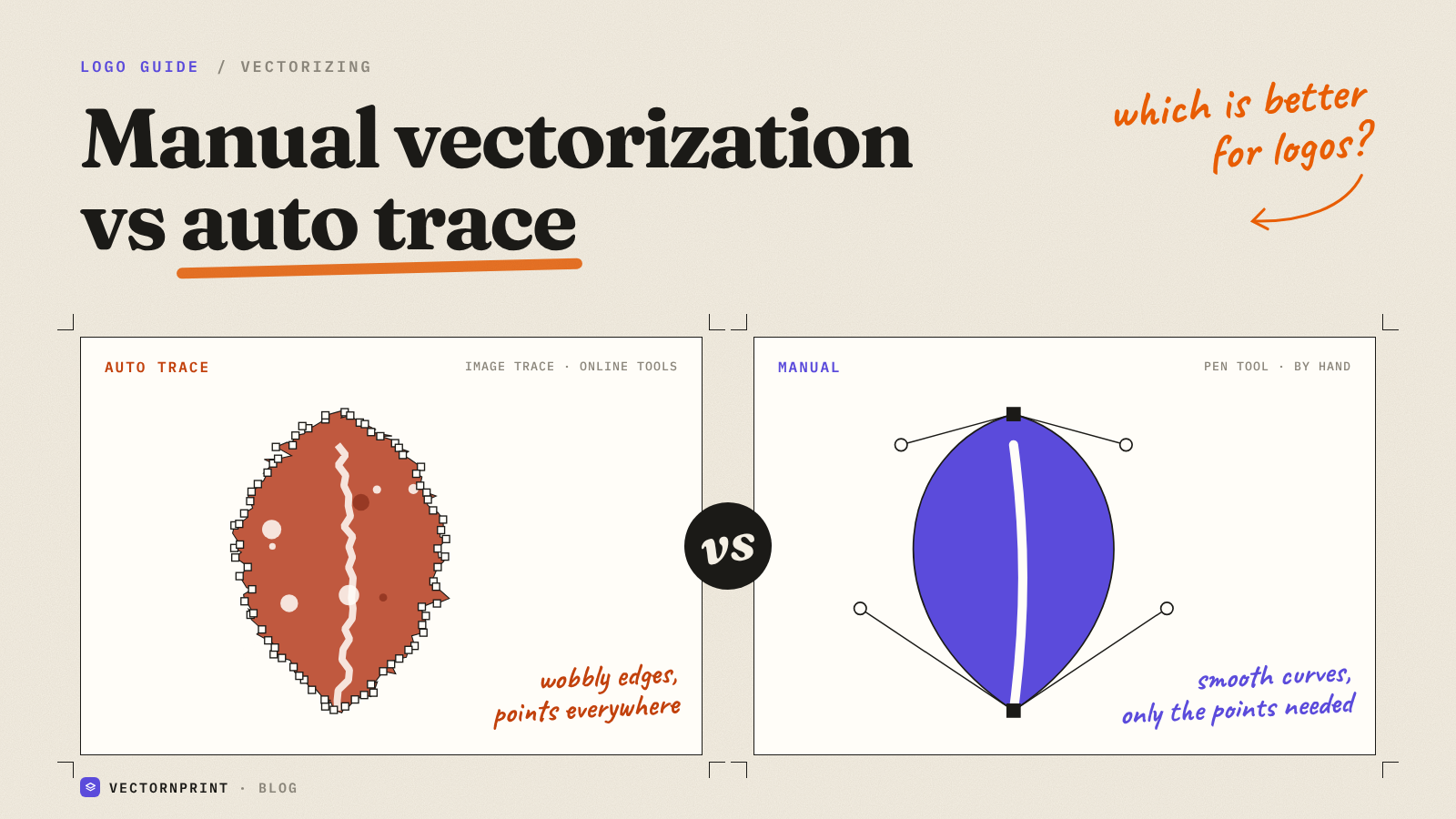
Both methods convert raster images, such as PNG and JPG files, into vector paths. However, they use different approaches.
Manual vectorization involves rebuilding artwork by hand using tools such as the Pen Tool and Shape Builder in Adobe Illustrator. A designer recreates the important shapes, curves, lettering, and colors with control over individual elements.
Automatic image tracing uses software algorithms to analyze pixel boundaries, colors, and contrast, then generates vector paths automatically.
For example, if you upload a ChatGPT-generated logo into Adobe Illustrator, Image Trace can automatically detect its shapes and create vector objects. Manual vectorization involves recreating those shapes intentionally rather than accepting the software's interpretation.
Manual Vectorization vs Auto Trace: Key Differences
| Comparison | Manual Vectorization | Automatic Image Trace |
|---|---|---|
| Process | Hand-recreated paths | Software-generated paths |
| Accuracy | Greater control over proportions and details | Depends on source quality and settings |
| Curves | Individually refined | Automatically detected |
| Typography | Can be matched or redrawn | May produce irregular letter shapes |
| Anchor points | Intentionally controlled | Can generate unnecessary points |
| Editing | Easier with well-organized paths | May require additional cleanup |
| Speed | Takes more time | Usually faster |
| Best for | Logos and production artwork | Simple graphics and quick conversions |
The important distinction is that an automatically generated vector is not necessarily a professionally finished vector.
Free quote · no payment until you approve
Stuck with a blurry logo?
We rebuild it by hand as a sharp, scalable vector — ready for print, embroidery and signage.
1. How Automatic Image Tracing Works
An automatic vectorizer analyzes the pixels in an image and attempts to recreate its visible boundaries using vector shapes.
In Adobe Illustrator, this process is available through the Image Trace feature.
You can upload a PNG or JPG, choose a tracing preset, adjust settings such as colors, paths and noise, and generate a vector result.
After tracing, you can expand the result to create editable paths.
Advantages of Automatic Tracing
-
Fast conversion for simple artwork.
-
Useful for high-contrast black-and-white graphics.
-
Can convert basic silhouettes into vector shapes.
-
Requires less initial drawing work.
-
Useful for rough drafts and preliminary artwork.
Common Problems With Automatic Tracing
Automatic tracing does not understand the original designer's intentions.
For example, a circular logo element might be interpreted as a slightly uneven collection of curves. Thin lettering may become distorted, and small gaps can disappear.
Common issues include:
-
Excessive anchor points.
-
Jagged or uneven curves.
-
Distorted typography.
-
Unwanted background shapes.
-
Inconsistent line thickness.
-
Unnecessary color variations.
-
Poorly separated objects.
These problems become particularly important when artwork is being prepared for vinyl cutting, screen printing, embroidery, or professional signage.
Adobe also documents limitations involving geometric shapes and typography, where manually recreating the intended geometry or typesetting can produce a more reliable result.
2. How Manual Vectorization Works
Manual vectorization takes a more controlled approach.
Instead of allowing software to interpret every pixel, a designer examines the reference artwork and reconstructs its essential elements using vector drawing tools.
A professional vector redraw generally involves several stages.
Step 1: Analyze the Original Artwork
The designer examines the image's composition, proportions, typography, colors, curves, and smaller details.
For AI-generated logos, this stage is particularly important because generated artwork may contain unusual letterforms, broken lines, or inconsistent geometry.
Step 2: Rebuild Shapes and Curves
Using Adobe Illustrator, the designer recreates the artwork with carefully positioned anchor points and smooth Bézier curves.
The objective is to achieve clean geometry without unnecessary points.
Step 3: Correct Typography and Details
If the original logo contains distorted lettering, the designer can identify a suitable font or manually recreate custom letterforms.
Small gaps, inconsistent edges, and unwanted intersections can also be corrected.
Step 4: Organize Colors and Layers
The artwork is separated into editable objects with controlled colors.
This is especially useful when a customer needs full-color, black, white, or one-color versions of the same logo.
Step 5: Prepare Production Files
The final artwork is checked according to its intended application.
Deliverables may include editable AI, EPS, SVG and PDF files, along with transparent PNG versions.
For production work, the designer should also consider color separation, minimum detail sizes, outlines, and the requirements of the printing or manufacturing process.
3. Which Method Is Better for AI-Generated Logos?
AI-generated logos often look impressive on a screen, but their appearance does not automatically make them suitable for professional production.
Images generated through ChatGPT, Gemini, Grok and Canva AI are commonly supplied as raster images.
They may contain:
-
Distorted lettering.
-
Uneven geometric elements.
-
Inconsistent outlines.
-
Unwanted visual artifacts.
-
Merged shapes.
-
Unnecessary color variations.
Automatic tracing can reproduce many of these imperfections as vector paths rather than correcting them.
Manual vectorization allows a designer to reconstruct the artwork while preserving its original composition and visual identity.
For example, a clothing brand might generate a logo using ChatGPT. The design looks good as a social media image, but the printer needs clean, editable artwork for T-shirt production.
A professional redraw can preserve the original concept while correcting problematic shapes and preparing the necessary production versions.
The objective should be to improve the technical quality without unnecessarily redesigning the customer's original artwork.
4. When Should You Choose Auto Trace or Manual Vectorization?
The right method depends on your artwork and its intended use.
Choose automatic tracing when:
-
You have a simple black-and-white silhouette.
-
The artwork has clean, high-contrast boundaries.
-
Minor imperfections are acceptable.
-
You need a quick preliminary conversion.
-
The result will only be used for basic digital applications.
Choose manual vectorization when:
-
Your logo contains important typography.
-
You need accurate curves and proportions.
-
Your AI-generated artwork contains visible imperfections.
-
You need editable Illustrator files.
-
You are preparing artwork for commercial printing.
-
You need consistent logo variations.
-
Your design will be used for apparel, signage, packaging, or embroidery preparation.
If brand consistency and production quality matter, manual reconstruction is generally the safer choice.
5. How to Check Whether a Vector File Is Professionally Prepared
Receiving an SVG or AI file does not automatically mean the artwork is production-ready.
Before sending your logo to a printer, check the following:
1. Inspect the anchor points: Look for unnecessary points, irregular curves, and broken paths.
2. Check the typography: Make sure letters are correctly shaped, readable, and properly outlined when required.
3. Examine the colors: Confirm that the artwork uses the intended color palette rather than unwanted variations.
4. Test scalability: Enlarge the artwork and inspect its edges and small details.
5. Check editability: Make sure individual elements can be selected and modified where necessary.
6. Confirm production requirements: Ask your printer whether the file meets their requirements for color mode, dimensions, strokes, and file format.
A well-prepared vector should be more than a file with an SVG extension. It should contain usable, properly constructed vector artwork.
6. Get Your AI-Generated Logo Professionally Vectorized
If your logo was created using ChatGPT, Gemini, Grok or Canva AI, you do not necessarily need a redesign.
You may simply need your existing artwork reconstructed as a clean, editable vector.
At VectorNPrint, we specialize in 100% manual Adobe Illustrator vector redraws. We do not use automatic Image Trace or auto-tracing shortcuts.
Our objective is to preserve your original design while improving its technical quality.
Our AI Art to Vector service includes:
-
Manual reconstruction of AI-generated logos.
-
Clean and editable vector paths.
-
Typography matching and correction.
-
Full-color, black, white, and one-color versions.
-
Icon-only, wordmark, horizontal, and stacked variations.
-
AI, EPS, SVG, and PDF files.
-
Transparent 300 DPI PNG files.
-
Optional HEX and CMYK color guides.
The final artwork can be prepared for business cards, T-shirts, DTF transfers, screen printing, stickers, signage, packaging, and other applications.
Have an AI-generated logo that needs professional vectorization?
Explore our AI Art to Vector Service to see how your ChatGPT, Gemini, Grok or Canva AI logo can be manually reconstructed into clean, production-ready vector files.
Prefer to skip the cleanup? Our hand-drawn vector tracing service redraws your logo in Adobe Illustrator, with no auto-trace.
Frequently Asked Questions
Is manual vectorization better than automatic image tracing?
Manual vectorization is generally better for logos that require precise geometry, accurate typography, clean curves, and professional production files. Automatic tracing is useful for simpler graphics where speed is more important than detailed refinement.
Does Adobe Illustrator Image Trace create real vector files?
Yes. Illustrator Image Trace generates vector artwork that can be expanded into editable paths. However, the generated paths may require further refinement before professional use.
Can automatic vectorizers fix distorted AI-generated logos?
Not reliably. Automatic vectorizers reproduce visible pixel boundaries but do not necessarily understand the intended lettering, proportions, or missing design details. Manual reconstruction is often more appropriate for correcting these problems.
Is manual vectorization suitable for screen printing?
Yes. Manual vectorization can produce clean, editable artwork suitable for screen-printing preparation. The final file must also meet the printer's requirements for spot colors, separations, dimensions, and minimum detail.
What is the difference between vector tracing and vector redraw?
Vector tracing generally refers to following the visible boundaries of existing artwork. Vector redraw involves reconstructing the design with deliberate control over shapes, curves, typography, and proportions. Professional manual vectorization often combines both approaches.
Which file formats should I request after vectorization?
For professional logo work, request AI, EPS, SVG, or vector-based PDF files. Transparent PNG files are useful for digital applications, previews, and documents, but they are raster images rather than editable vector files.
Need a clean, editable vector version of your AI-generated logo?
VectorNPrint offers 100% manual Adobe Illustrator vectorization with no auto-trace. Send your original artwork and tell us where you plan to use it.