On this page
- Can You Convert a Low-Resolution Image to Vector?
- What Happens When You Try to Vectorize a Low-Resolution Image?
- Can a Blurry Image Really Become a Clean Vector?
- Why Simply Upscaling the Image Isn't Enough
- How to Convert a Low-Resolution Image to Vector
- Manual Vectorization vs. Automatic Tracing
- What If the Image Is Extremely Low Resolution?
- Can AI Convert a Low-Resolution Image to Vector?
- How VectorNPrint Handles Low-Resolution Artwork
- When Should You Use Professional Vectorization?
- Frequently Asked Questions
- Need a Low-Resolution Image Converted to Vector?
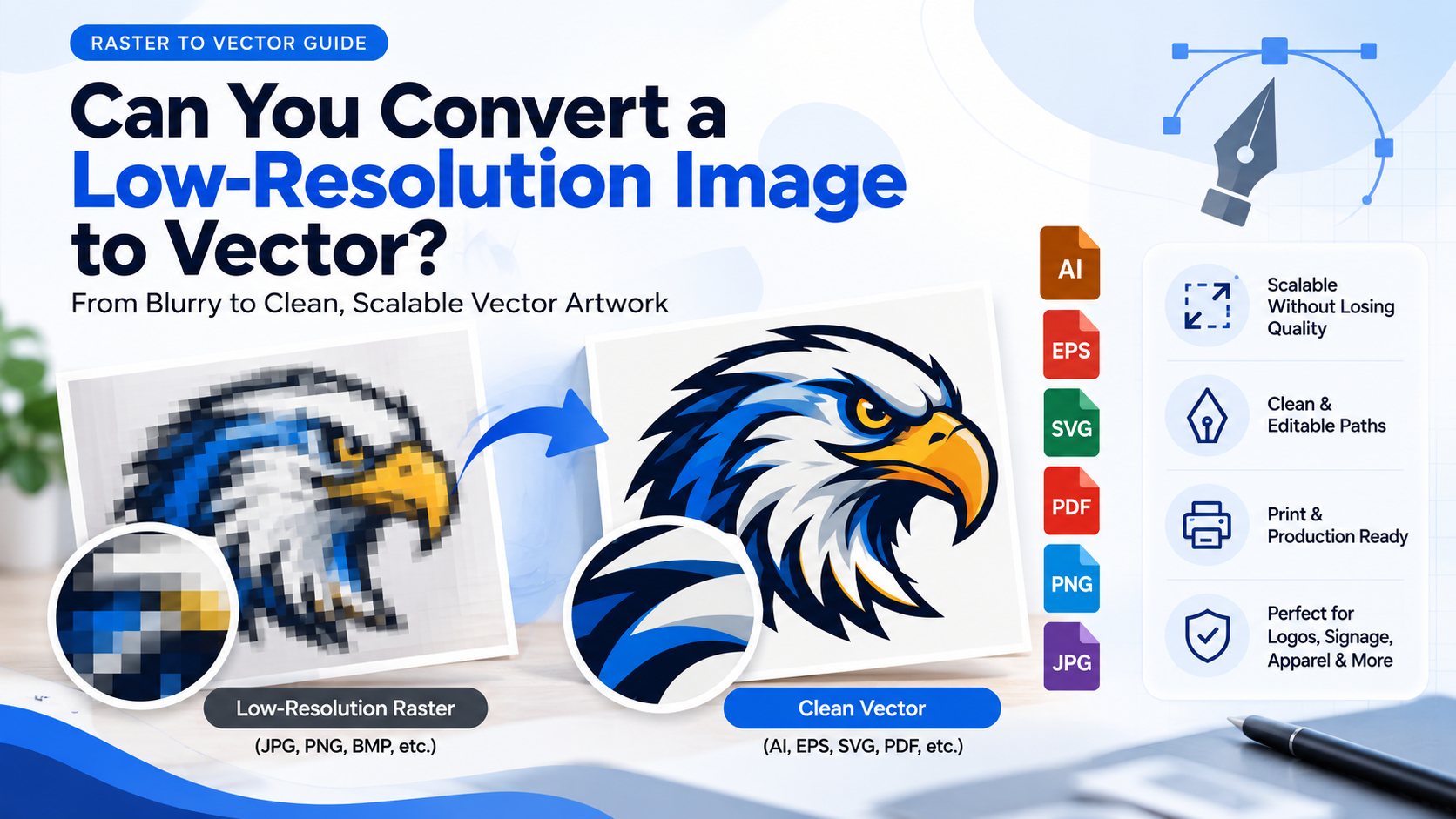
Can You Convert a Low-Resolution Image to Vector?
For simple logos, icons, illustrations, and line artwork, a low-resolution JPG or PNG can often be converted successfully. When the source is extremely small, blurry, compressed, or contains fine details, manual vector tracing or reconstruction is usually more reliable than relying entirely on automatic tracing.
That distinction matters when the final artwork needs to be used for printing, signage, apparel, screen printing, embroidery, packaging, or other professional production.
Get a free quote → 💬 WhatsApp us
What Happens When You Try to Vectorize a Low-Resolution Image?
A raster image is made from pixels. A low-resolution logo might contain only a few hundred pixels across, with compression artifacts and blurred edges.
A vector file works differently. Instead of storing the image as a fixed grid of pixels, it represents artwork using editable paths, shapes, fills, and curves.
Adobe Illustrator's Image Trace can convert raster artwork into editable vector paths, and its result can be adjusted using tracing controls. Adobe also notes that the source image's nature, quality, and size affect the quality of the tracing result.
The important limitation
If a 200-pixel logo has a letter whose edge is completely blurred, no conversion tool can know exactly what the original edge looked like.
A good vectorization process therefore involves reconstruction, not simply clicking “convert.”
Can a Blurry Image Really Become a Clean Vector?
Yes—especially when the underlying design is simple and recognizable.
For example, a blurry company logo may still contain enough information to identify:
- The overall logo shape
- Letterforms
- Basic colors
- Symbols or icons
- Straight lines
- Curves
- Relative proportions
- Negative space
A skilled vector artist can use those visual references to rebuild the artwork with cleaner geometry.
Adobe specifically notes that Image Trace is not always the best method for geometric shapes, logos, icons, or text where exact forms matter; manual tracing can be more appropriate in these situations.
That is why a low-quality logo to vector project should not automatically be treated as an automatic tracing job.
Why Simply Upscaling the Image Isn't Enough
A common mistake is to take a tiny JPG or PNG, enlarge it, sharpen it, and then save it as an EPS or SVG.
That does not make the original artwork a true vector.
Upscaling increases the dimensions of the raster image, but the underlying artwork is still pixel-based. Saving a raster image inside a vector container also does not recreate clean vector paths.
For a professional logo, the better approach is to use the low-resolution artwork as a visual reference and rebuild the important elements as vector shapes and curves.
How to Convert a Low-Resolution Image to Vector
Find a Better Original First
Before tracing anything, look for an existing high-quality version.
Check for:
- Original AI file
- EPS
- SVG
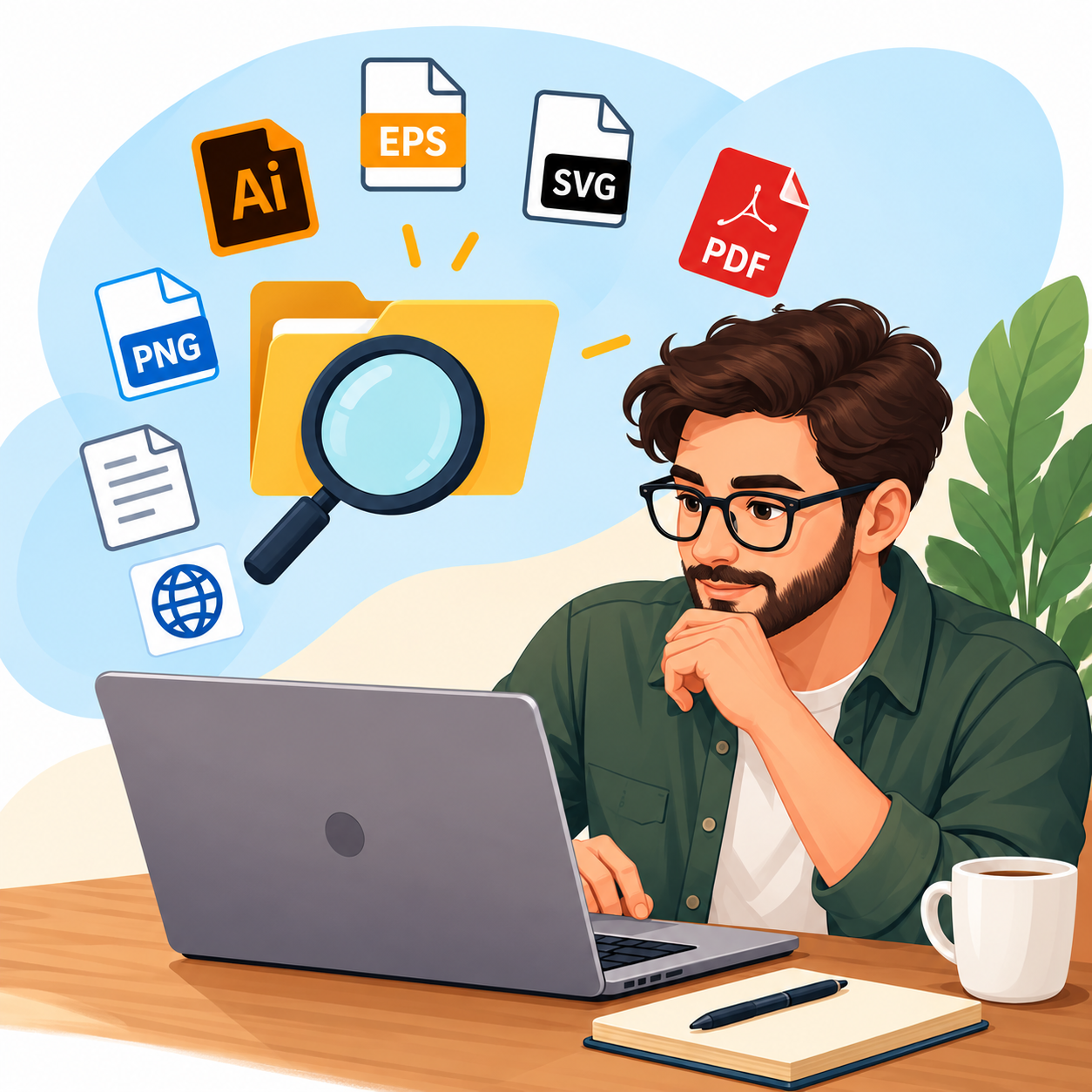
- Vector PDF
- Larger PNG
- Original designer files
- Brand guidelines
- Website or print artwork archives
If an original vector master exists, using it is preferable to recreating the logo from a tiny screenshot.
Clean the Raster Reference
If the low-resolution image is the only available source, inspect it carefully.
Identify:
- Background
- Main shapes
- Colors
- Text
- Fine details
- Distorted edges
- Compression artifacts
The objective is not to preserve every pixel artifact. Those artifacts are often defects introduced by compression rather than part of the actual design.
Try Automatic Image Trace When Appropriate
For clean, high-contrast artwork, Illustrator's Image Trace can provide a useful starting point.
You can adjust settings for colors, paths, corners, noise, and other characteristics. After tracing, the result can be expanded into editable paths and further cleaned.
However, automatic tracing becomes less dependable when the source contains:
- Tiny text
- Complex logos
- Very blurry edges
- Overlapping shapes
- Precise geometric forms
- Compression noise
- Irregular curves
Manually Rebuild the Artwork
For important logos and production artwork, manual tracing gives the designer control over the actual geometry.
Instead of reproducing every pixel, the designer can construct clean Bézier curves, properly align shapes, rebuild lettering where necessary, and remove unwanted artifacts.
The result should be a clean, editable vector, not merely an automated approximation.
Manual Vectorization vs. Automatic Tracing
| Automatic Image Trace | Manual Vector Tracing |
|---|---|
| Fast for simple artwork | More precise for important artwork |
| Generates paths automatically | Paths are deliberately constructed |
| Useful as a starting point | Better control over curves and geometry |
| Can create unnecessary anchor points | Can be optimized for clean editing |
| Quality depends heavily on source | Can reconstruct difficult source artwork |
| Requires post-trace cleanup | Designed around the intended final result |
Neither method is automatically correct for every image. The right choice depends on the source quality and how the final artwork will be used.
What If the Image Is Extremely Low Resolution?
If your logo is severely pixelated, don't keep enlarging it and expecting more detail to appear.
Instead:
- Find the largest version available.
- Check whether an original vector file exists.
- Identify the intended colors and proportions.
- Remove obvious compression artifacts from consideration.
- Determine where the artwork will be used.
- Reconstruct important shapes manually when necessary.
- Inspect the final vector at high magnification.
- Test the artwork at its intended production size.
For brand-critical artwork, accuracy is more important than preserving every imperfect pixel from the original.
Can AI Convert a Low-Resolution Image to Vector?
Modern design software can provide AI-assisted and automated vector workflows. Adobe Illustrator now includes both Image Trace and newer AI-based functionality for generating vector artwork from raster images.
These tools can be useful, but the existence of an automated vector result does not automatically mean the file is production-ready.
You still need to check:
- Shape accuracy
- Text
- Colors
- Path quality
- Anchor points
- Unwanted artifacts
- Layer structure
- Scalability
- Production requirements
For a professional logo, human quality control remains important, particularly when the source image is poor.
How VectorNPrint Handles Low-Resolution Artwork
At VectorNPrint, low-resolution artwork is one of the situations our manual vector tracing workflow is designed to handle.
The website specifically accepts blurry JPGs, low-resolution PNGs, hand-drawn sketches, and scanned artwork, with every path manually traced in Adobe Illustrator. The positioning is simple: “Zero auto-trace. 100% human precision.”
With 7+ years of experience and 2,500+ projects delivered, VectorNPrint focuses on creating clean, scalable files rather than simply running an image through an automatic converter.
Depending on the project, deliverables can include AI, EPS, SVG, and PDF, with artwork prepared for applications such as print, screen printing, embroidery, and other production workflows.
The practical advantage is that the low-resolution image becomes a reference for rebuilding the artwork, rather than something that has to be enlarged indefinitely.
When Should You Use Professional Vectorization?
Professional help is worth considering when:
- Your only logo is a blurry JPG or PNG.
- A printer has requested vector artwork.
- Your logo needs to be printed at a much larger size.
- Automatic tracing creates messy edges.
- Small text needs to remain accurate.
- The artwork will be used for embroidery or screen printing.
- You need editable AI, EPS, SVG, or PDF files.
- Brand accuracy is important.
The final file should be judged by path quality, accuracy, editability, and production usability—not simply by whether it has an .SVG or .EPS extension.
Frequently Asked Questions
Can you convert a low-resolution JPG to vector?
Yes. A low-resolution JPG can be converted into vector artwork through automatic tracing or manual reconstruction. The more important question is whether the source contains enough visual information to recreate the design accurately.
Can a blurry logo be converted to SVG?
Yes. A blurry logo can often be manually rebuilt as an SVG. Extremely poor sources may require interpretation or reconstruction of unclear details.
Does vectorization improve image quality?
Vectorization creates scalable artwork that can remain sharp at different sizes, but it does not recover missing information from the original image. Any unclear details must be reconstructed.
Is manual vector tracing better for low-quality logos?
For difficult or brand-critical logos, manual tracing can provide greater control over geometry, curves, lettering, and unwanted artifacts than automatic tracing.
Need a Low-Resolution Image Converted to Vector?
If your only copy of a logo or artwork is a blurry JPG, low-resolution PNG, scan, or screenshot, don't assume the artwork is unusable.
The right approach is to determine what information remains in the source and rebuild the important elements as clean vector artwork.
VectorNPrint manually converts low-resolution and raster artwork into clean, scalable vector files using Adobe Illustrator—with zero auto-trace shortcuts.
If your artwork needs to be prepared for printing, screen printing, embroidery, apparel, signage, packaging, or other production, you can submit the source image for a professional raster-to-vector conversion assessment.
Get a Raster to Vector Conversion Quote →The objective isn't simply to make a blurry image larger. It's to turn the available artwork into a clean, editable, scalable file that is actually useful for production.