On this page
- 1. Low Resolution Makes Printed Artwork Look Blurry
- 2. RGB Colors May Look Different in Print
- 3. Missing Bleed and Incorrect Dimensions Cause Trimming Problems
- 4. Distorted Text and Small Details Become Visible
- 5. Raster Artwork Cannot Replace Editable Vector Files
- 6. Why Automatic Conversion May Not Be Enough
- 7. Final Checklist Before Sending AI Artwork to a Printer
- Frequently Asked Questions
- Need Your AI Artwork Prepared for Professional Printing?
Understand common print-file problems and how to prepare AI artwork for professional production.
AI-generated artwork can look impressive on your screen but still fail when submitted for professional printing. The most common reasons are insufficient resolution, incorrect dimensions, RGB color issues, missing bleed, distorted text, and artwork that cannot be properly edited or scaled.
The problem is not necessarily the AI-generated image itself. It is that an image created for digital viewing is not automatically prepared for commercial print production.
If you use ChatGPT, Midjourney, DALL·E, or Canva AI to create logos, illustrations, or promotional graphics, understanding these issues can help you avoid rejected files, unexpected revisions, and poor print results.
1. Low Resolution Makes Printed Artwork Look Blurry
One of the most common AI image printing problems is insufficient resolution.
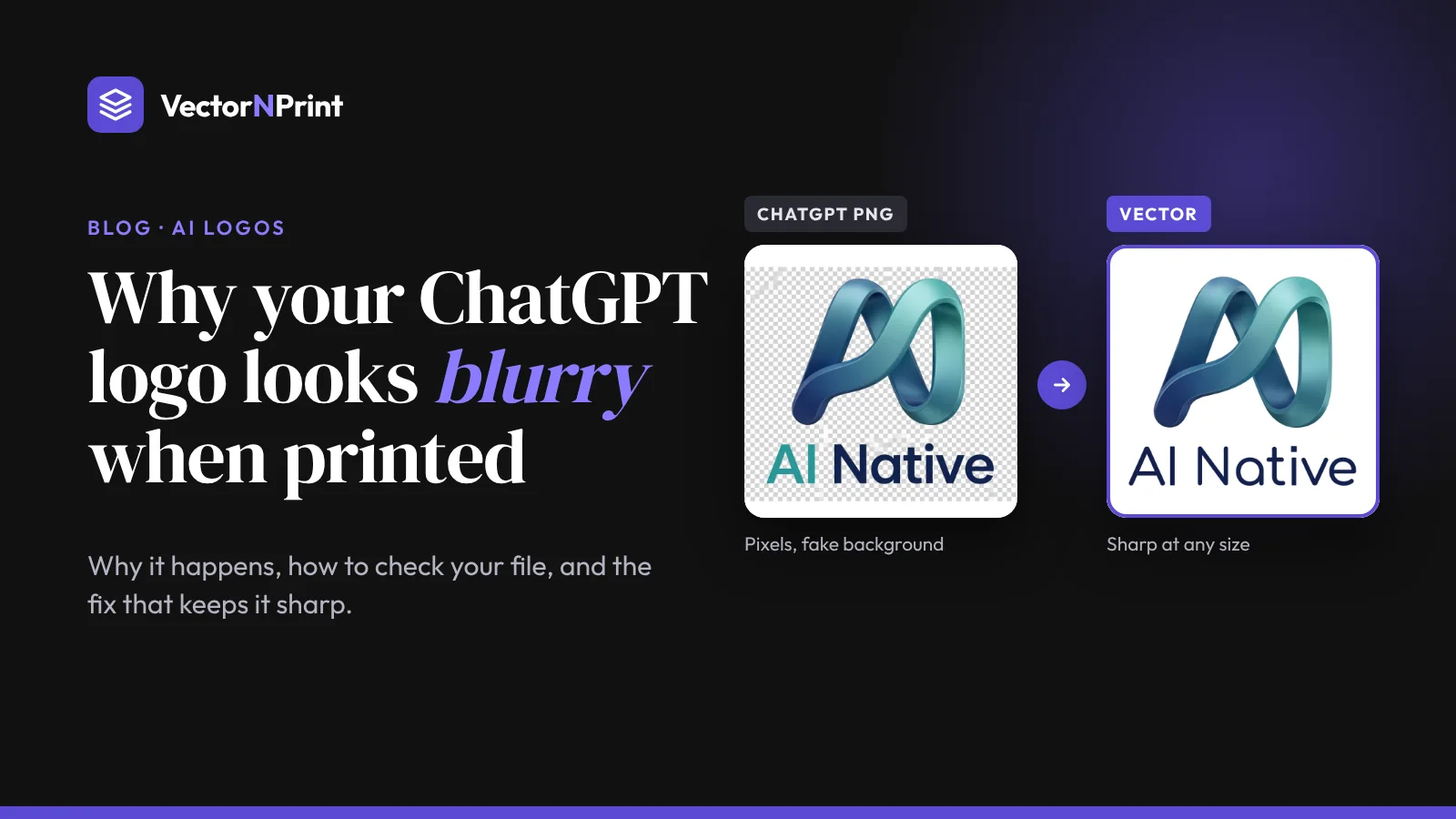
AI tools typically generate raster images made from pixels. When an image is enlarged beyond its available detail, edges become soft, fine lines disappear, and the printed result may look pixelated.
For many standard commercial print applications, 300 PPI at the final output size is a useful starting point. Large-format printing may require less, depending on viewing distance and printer specifications.
Example: A 1,024-pixel-wide AI image printed at 12 inches has approximately 85 effective PPI. It may look acceptable as a small screen graphic but lack the detail needed for a close-viewed print.
How to fix it:
- Generate or download the largest original image available.
- Check pixel dimensions against the intended print size.
- Avoid repeatedly enlarging compressed JPG files.
- Use professional upscaling when appropriate, then inspect the result.
- Rebuild logos, icons, and clean illustrations as vector artwork when scalability is important.
Simply changing the DPI metadata does not create missing image detail.
2. RGB Colors May Look Different in Print
AI-generated artwork is commonly created in RGB color, which is designed for digital screens. Many conventional commercial printing workflows use CMYK inks.
Because screens produce light while printers use physical inks, some bright colors cannot be reproduced exactly. Vivid purples, electric blues, and saturated gradients may appear less vibrant after conversion.
How to fix it:
- Confirm the printer's required color profile.
- Convert artwork using an appropriate color-managed workflow.
- Check important brand colors before production.
- Request a proof when color accuracy matters.
Do not assume every printer requires the same color setup. Some modern workflows accept RGB files and manage conversion themselves.
3. Missing Bleed and Incorrect Dimensions Cause Trimming Problems
AI image generators do not automatically understand a printer's trim line, bleed area, or safe zone.
If artwork is intended to print to the edge but contains no bleed, small trimming variations can expose unwanted white edges.
How to fix it:
- Confirm the finished dimensions with your printer.
- Add the required bleed beyond the trim line.
- Keep important text and logos inside the safe area.
- Check crop marks and document orientation.
- Export using the printer's requested format.
A common reference is 0.125 inches of bleed, but always follow the specific printer's instructions.
4. Distorted Text and Small Details Become Visible
AI image generators can create letters, numbers, and decorative details that look convincing at first glance but contain spelling errors, inconsistent shapes, or unnatural proportions.
These defects become particularly noticeable on business cards, labels, packaging, apparel graphics, and signage.
How to fix it:
- Recreate important text using editable typography.
- Check spelling, numbers, and brand names.
- Inspect fine lines and small shapes at actual print size.
- Rebuild important logos and symbols as editable vector elements.
Text that is part of a flattened image cannot be corrected like ordinary editable text.
5. Raster Artwork Cannot Replace Editable Vector Files
A PNG or JPG can be perfectly suitable for photographic printing, provided its resolution and file setup are appropriate.
However, logos, icons, lettering, and clean illustrations often benefit from vector artwork.
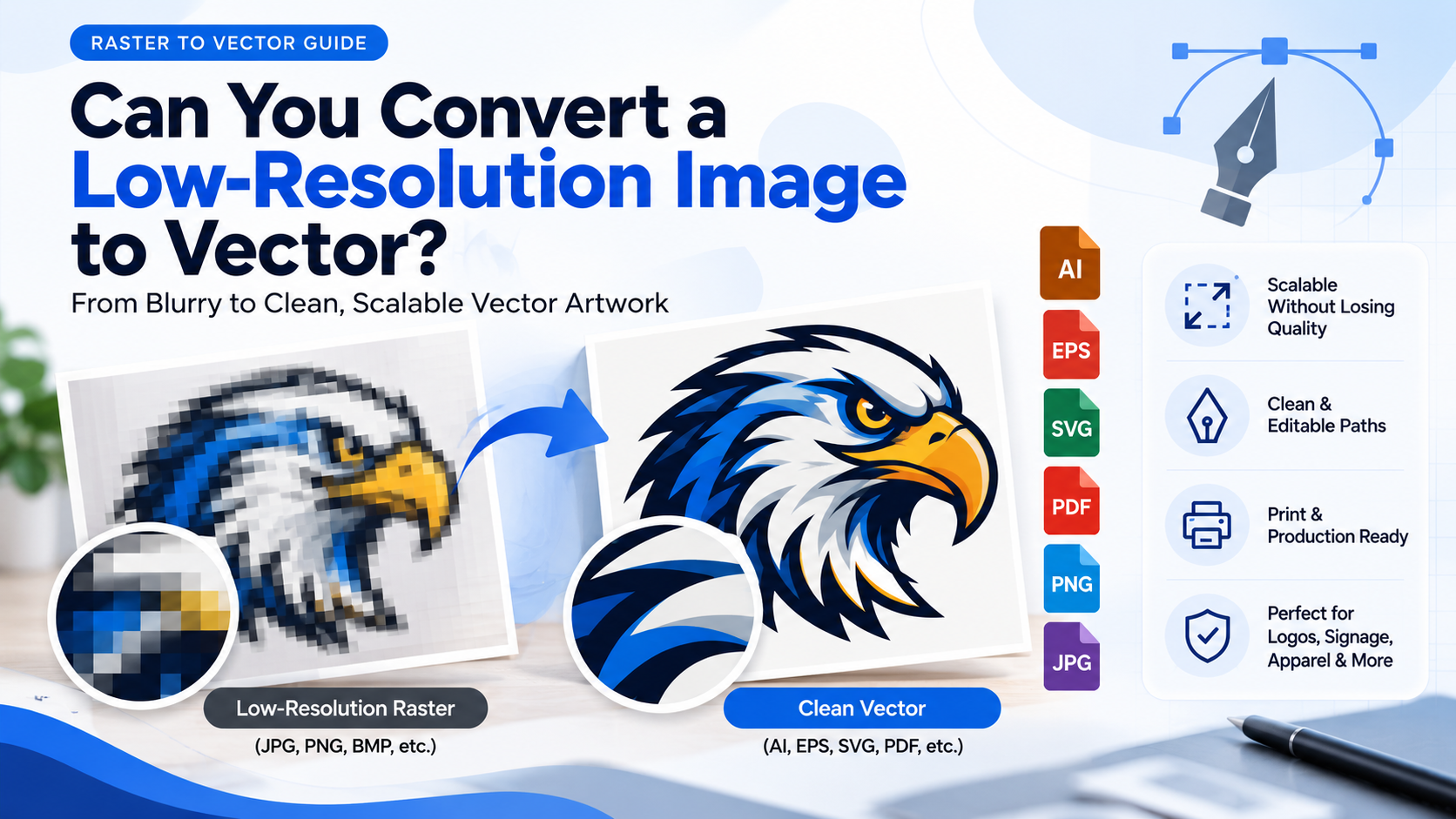
Vector files use editable paths and shapes rather than a fixed pixel grid. They can scale without the same pixelation problems as raster images.
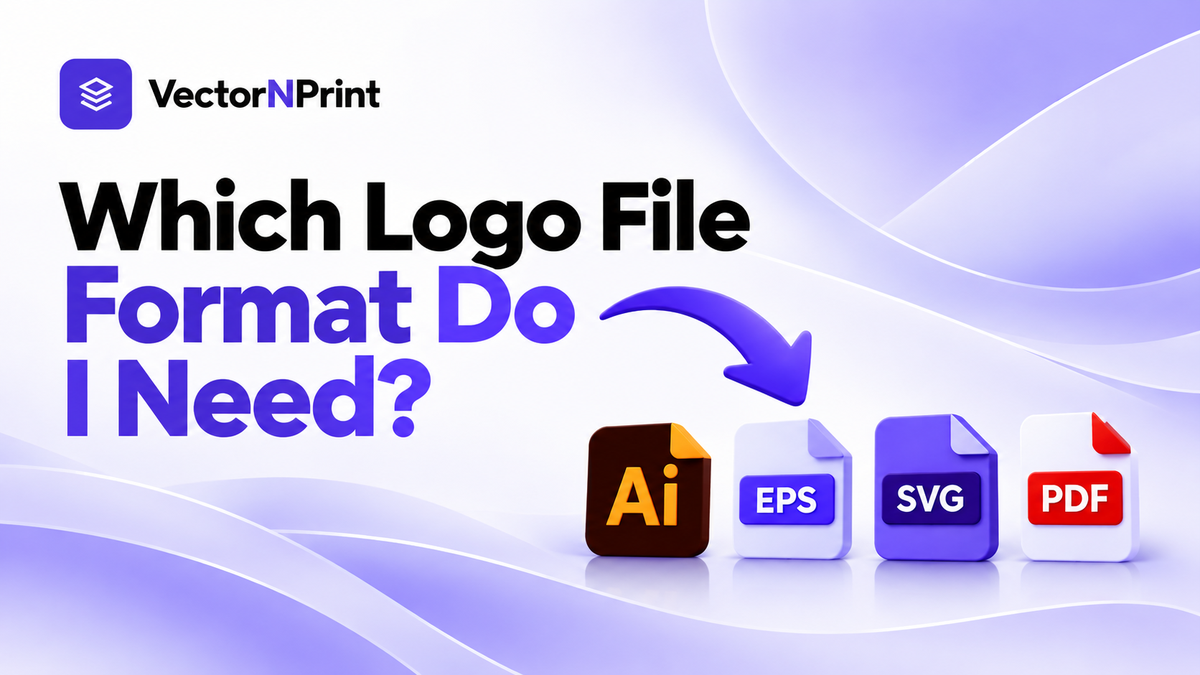
For production work, common formats include AI, EPS, SVG, and vector-based PDF.
When should you convert AI artwork to vector?
Consider vector reconstruction when:
- An AI-generated logo needs to be enlarged for signage.
- A graphic must be used across business cards, apparel, and packaging.
- Individual colors or shapes need editing.
- A printer requests editable vector artwork.
- Automatic tracing produces rough edges or excessive anchor points.
Vectorization is not a substitute for high-resolution photography. It is most useful for artwork that can be accurately reconstructed as shapes and paths.
6. Why Automatic Conversion May Not Be Enough
Online converters and automatic tracing tools can turn raster images into vector paths, but the result may contain uneven curves, unnecessary anchor points, distorted lettering, and poorly defined shapes.
For a professional logo or brand graphic, these problems can affect the final production quality.
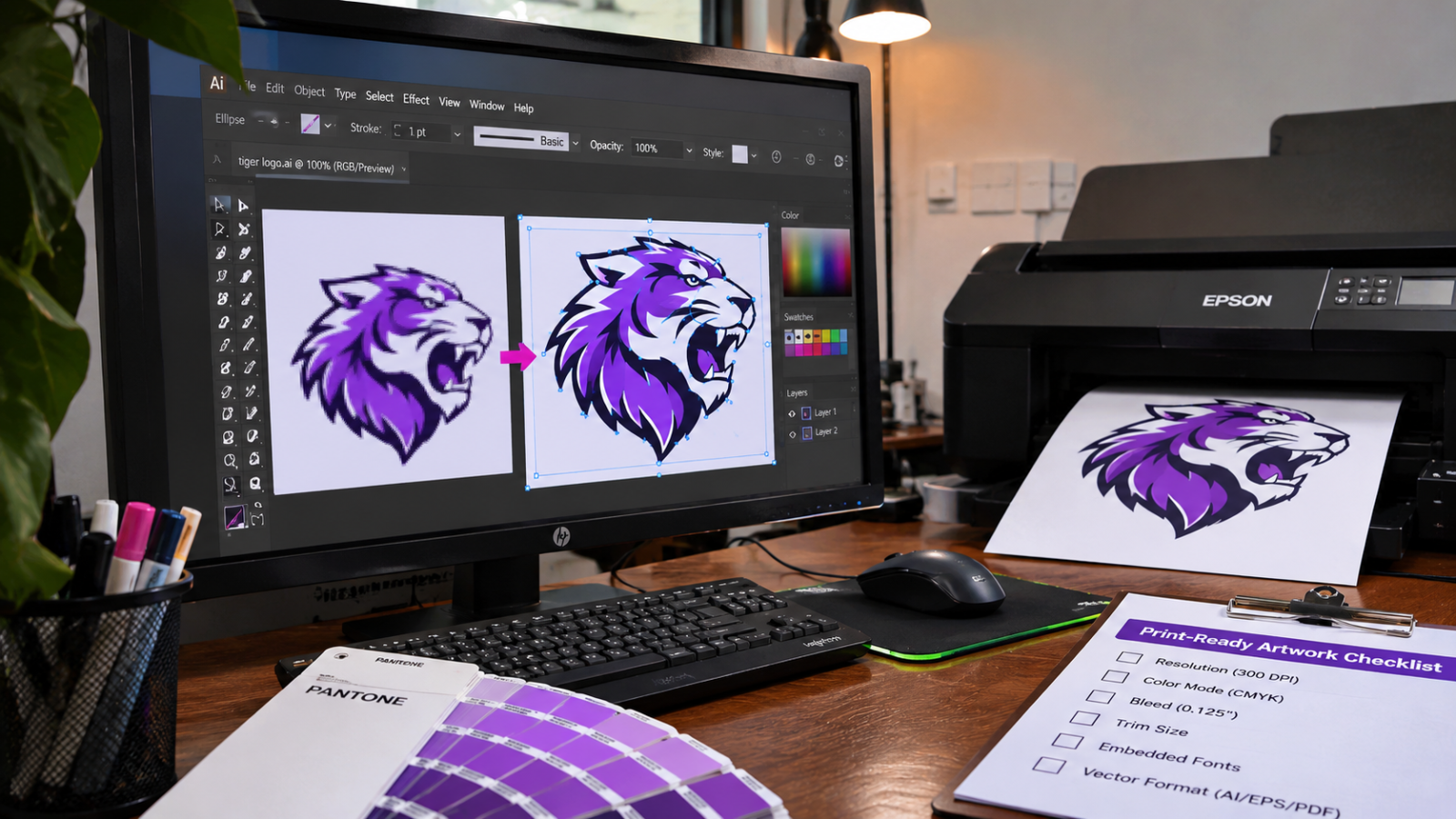
At VectorNPrint, AI-generated logos and graphics are manually reconstructed in Adobe Illustrator using the Pen Tool rather than relying on automatic Image Trace.
The process focuses on preserving the original composition, proportions, shapes, and colors while correcting unwanted AI imperfections. The goal is not to redesign your artwork but to make it cleaner, editable, and suitable for its intended use.
Depending on the project, deliverables can include AI, EPS, SVG, PDF, and transparent PNG files.
7. Final Checklist Before Sending AI Artwork to a Printer
| What to Check | What to Confirm |
|---|---|
| Resolution | Sufficient effective PPI at final size |
| Dimensions | Correct finished width and height |
| Color | Printer-approved color setup |
| Bleed | Required bleed and trim settings |
| Text | Correct spelling and editable lettering |
| Details | No visible AI artifacts or broken shapes |
| Background | Correct transparency or background |
| File Format | Printer-approved PDF, AI, EPS, SVG, or image |
| Vector Artwork | Clean paths for logos and scalable graphics |
Always request the printer's artwork specifications before exporting the final file.
Frequently Asked Questions
Why does my AI-generated image look blurry when printed?
The image may not contain enough pixels for its final printed dimensions. Check its effective resolution at the intended size rather than relying only on the DPI value shown in the file properties.
Can I print a ChatGPT or Midjourney image directly?
Yes, if the image meets the printer's requirements for resolution, dimensions, color, and file format. Some artwork may need additional preparation.
Does AI-generated artwork need to be converted to CMYK?
Not always. Many traditional commercial printing workflows use CMYK, but some printers accept RGB and handle conversion themselves. Follow the printer's instructions.
Can AI-generated logos be converted into vector files?
Yes. Logos and suitable illustrations can be manually reconstructed as vector artwork in Adobe Illustrator. The result can be supplied in formats such as AI, EPS, SVG, and PDF.
Will vectorization fix every AI image printing problem?
No. Vectorization can improve logos, lettering, icons, and shape-based artwork, but it cannot automatically restore missing photographic detail or correct every content-related AI error.
Need Your AI Artwork Prepared for Professional Printing?
An AI-generated design can be a strong starting point, but production requires more than an attractive image.
If your AI logo or graphic needs clean outlines, editable shapes, consistent colors, or scalable vector files, VectorNPrint can help.
Explore our AI Art to Vector service for manual Adobe Illustrator reconstruction, without automatic tracing or unnecessary redesign.