On this page
- What Is Raster-to-Vector Conversion?
- Why Does a Raster Image Lose Quality When Enlarged?
- How to Convert a Raster Image to Vector in Adobe Illustrator
- Is Automatic Image Trace Always Enough?
- Manual Vector Tracing vs. Automatic Conversion
- How to Get the Best Vector Result From a Poor-Quality Image
- Which Vector Format Should You Choose?
- When Should You Use a Professional Raster-to-Vector Service?
- Frequently Asked Questions
Learn how to convert a raster image to vector without losing quality. Compare Illustrator Image Trace with manual vector tracing and discover when professional conversion is the better option.
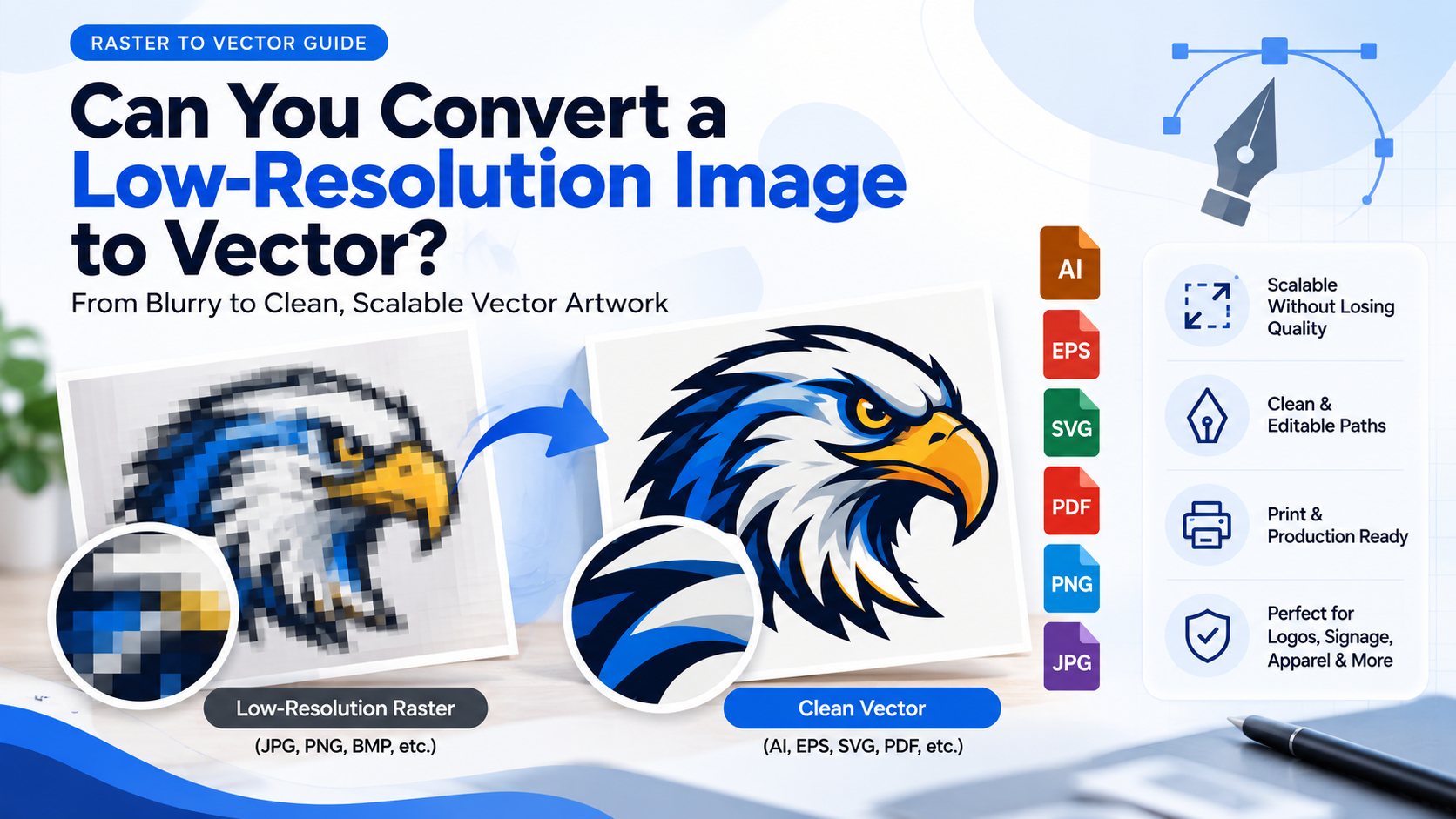
If your logo, artwork, or scanned design looks blurry when enlarged, the problem is usually the file type. Raster images such as JPG and PNG are built from pixels, so enlarging them beyond their original resolution can reveal pixelation. Vector graphics use editable paths, shapes, and curves instead, allowing artwork to scale without becoming pixelated.
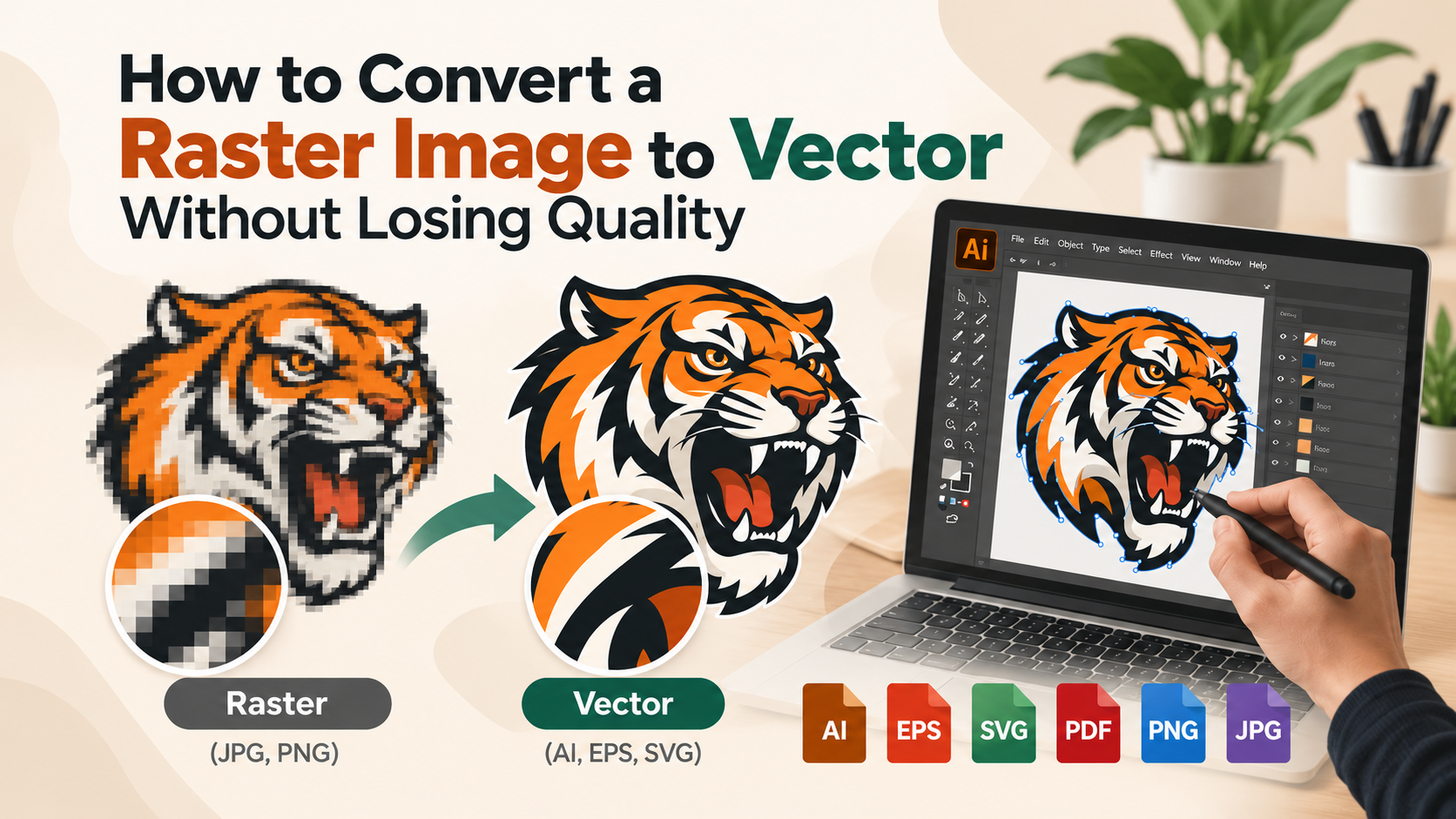
So, how do you convert a raster image to vector without losing quality? You recreate the raster artwork as vector paths rather than simply enlarging the original image. For simple artwork, Adobe Illustrator's Image Trace can automate much of the process. For logos, detailed illustrations, small text, or artwork that must match the original precisely, manual vector tracing can provide greater control.
What Is Raster-to-Vector Conversion?
Raster-to-vector conversion is the process of turning pixel-based artwork into editable vector artwork.
Common raster formats include:- JPG or JPEG
- PNG
- BMP
- TIFF
- Scanned artwork and photographs
- AI
- EPS
- SVG
The important distinction is that vectorization does not simply “increase the resolution” of a JPG or PNG. The artwork has to be interpreted and rebuilt as vector geometry.
Adobe Illustrator's Image Trace can convert raster images into editable vector artwork, with controls for paths, corners, noise, colors, transparency, and other tracing characteristics.
Why Does a Raster Image Lose Quality When Enlarged?
A raster image contains a fixed grid of pixels. When you enlarge it significantly, the software has to interpolate those pixels, but it cannot recreate genuine detail that was never present in the source.
That is why a small logo may look acceptable on a screen but become noticeably soft when used for:
- Large banners
- Signage
- Vehicle graphics
- Apparel
- Packaging
- Screen printing
- Embroidery
- High-resolution commercial printing
Vector artwork solves the scaling problem by representing artwork with paths and shapes rather than a fixed pixel grid.
However, there is an important distinction:converting a raster image to vector does not magically recover missing detail. A poor-quality source still requires interpretation and reconstruction.
How to Convert a Raster Image to Vector in Adobe Illustrator
For relatively simple artwork, Illustrator provides a practical starting point.
1. Place the raster image
Open Illustrator and place your JPG, PNG, scan, or other raster artwork into the document
2. Open Image Trace
With the image selected, open Window → Image Trace. Illustrator provides presets and adjustable tracing controls for different types of artwork.
3. Choose an appropriate tracing method
The correct settings depend on the artwork.
For example:- Black-and-white logos may work well with a Black and White preset.
- Limited-color illustrations may benefit from a simplified color trace
- More detailed artwork may require additional adjustment.
- Very small or low-resolution artwork may require substantial manual cleanup
Adobe notes that the quality of an Image Trace result depends on the source image and the settings used.
4. Adjust paths, corners, colors, and noise
Do not assume the default trace is production-ready.
Excessive paths can create a difficult-to-edit file, while aggressive simplification can remove important details. Illustrator provides controls for paths, corners, noise, colors, and other characteristics so the result can be refined before expansion.
5. Expand and inspect the result
When the trace is ready, expand it to convert the tracing result into editable vector paths. You can then inspect individual shapes and simplify unnecessary anchor points where appropriate.
This final inspection is critical if the artwork will be used for commercial production.
Is Automatic Image Trace Always Enough?
No
Automatic tracing can be useful for simple, clean artwork, but it is not a universal replacement for manual vectorization.
Small text, imperfect outlines, overlapping shapes, irregular curves, subtle details, and low-resolution artwork can produce unwanted paths or inaccurate geometry.
Adobe's own documentation notes that low-resolution images can require significant adjustment and that some examples may be more efficiently traced manually.
That is why the best workflow depends on the artwork rather than assuming one tool will produce the correct result every time.
Manual Vector Tracing vs. Automatic Conversion
| Automatic Image Trace | Manual Vector Tracing |
|---|---|
| Fast for suitable artwork | More controlled |
| Useful for simple graphics | Better for precision reconstruction |
| Generates paths automatically | Paths are deliberately constructed |
| May require cleanup | Designed around the original artwork |
| Results depend heavily on source quality | Can address difficult source artwork manually |
For a simple icon, automatic tracing may be perfectly adequate.
For a brand logo that must be reproduced accurately across signage, packaging, apparel, and print, the quality of the final paths matters more than simply getting a vector file extension
How to Get the Best Vector Result From a Poor-Quality Image
If your source is blurry, tiny, compressed, or partially damaged, focus on reconstruction rather than enlargement
Before conversion:
- Use the highest-quality source available.
- Remove unnecessary backgrounds when possible.
- Identify the original colors and important shapes.
- Check whether small text or details are actually visible.
- Decide where the artwork will ultimately be used.
- Avoid adding details that are not supported by the original design.
For difficult artwork, manual tracing can rebuild clean curves and shapes while preserving the intended appearance.
At VectorNPrint, our workflow is built around this principle:zero auto-trace and 100% human precision. Raster artwork is manually traced in Adobe Illustrator, with the goal of producing clean, scalable, editable files suitable for real production. The current service supports JPG, PNG, BMP, TIFF, scans, and other raster artwork, with AI, EPS, SVG, and PDF delivery options
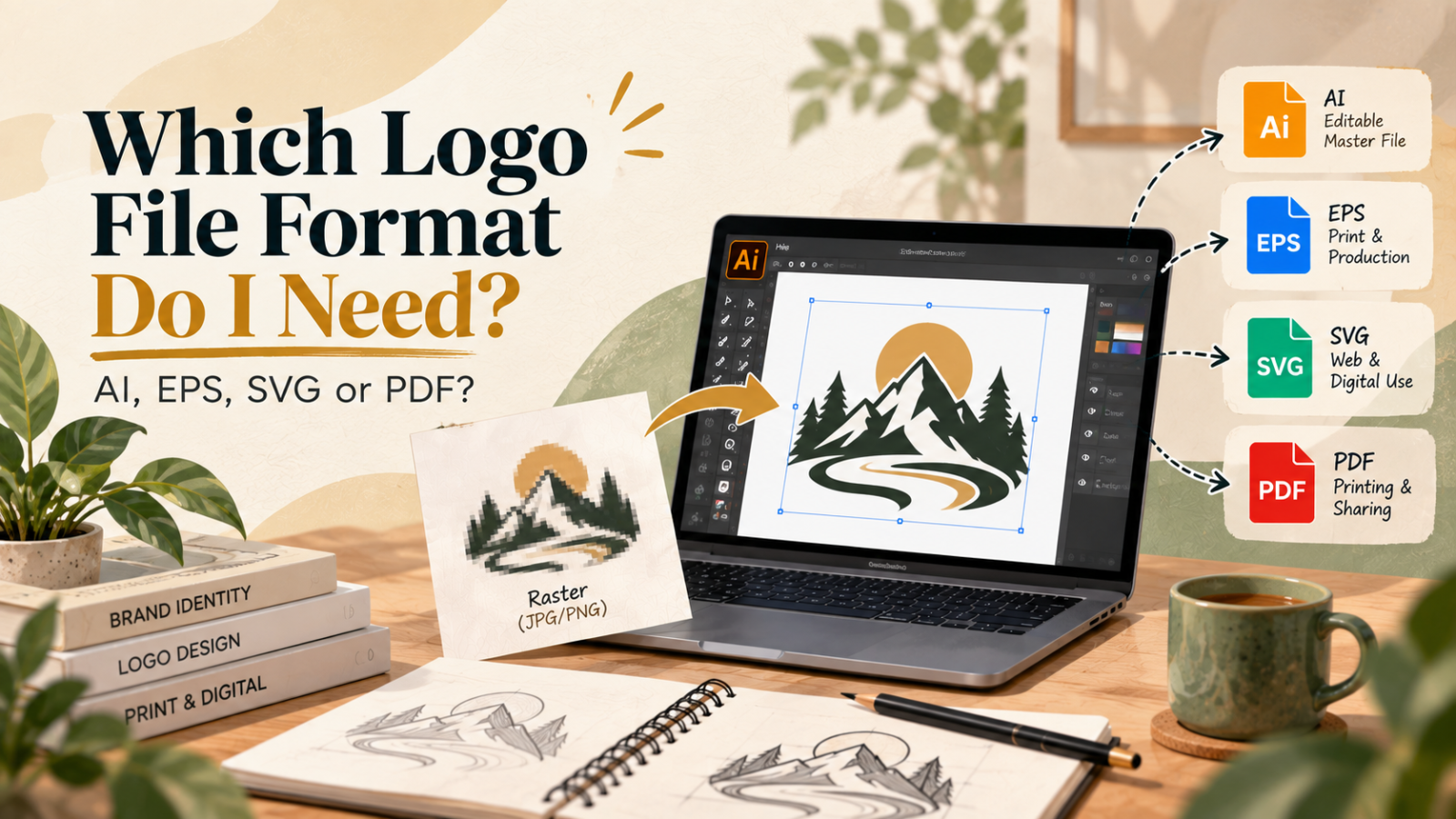
Which Vector Format Should You Choose?
The best format depends on what you intend to do with the artwork
AI: Useful when continued editing in Adobe Illustrator is required.
EPS: Commonly useful for professional print and production workflows.
SVG: Excellent for web, digital interfaces, and applications that support scalable vector graphics.
PDF: Useful when vector artwork needs to be shared or supplied in a broadly accessible document format.
For a professional project, it can be useful to request multiple formats rather than relying on one file type.
When Should You Use a Professional Raster-to-Vector Service?
Consider professional conversion when:
- Your logo is blurry or very small.
- Automatic tracing produces messy paths.
- The artwork contains complex shapes or fine details.
- You need an editable production file.
- Your printer specifically requests vector artwork.
- You need the same artwork for multiple production methods.
- Accuracy matters more than simply obtaining a vector extension.
A professional vector file should be judged by the quality of its paths, editability, accuracy, and production usability—not merely whether it ends in .AI, .EPS, or .SVG.
Frequently Asked Questions
Find answers to common questions about vector conversion and tracing.
Can you convert a JPG to a vector?
Yes. JPG is a raster format and can be converted into editable vector artwork using tracing or manual reconstruction. The final quality depends heavily on the original artwork and the conversion method.
Can you convert a PNG to a vector?
Yes, PNG artwork can be vectorized, particularly when it contains recognizable shapes, logos, lettering, or illustrations. Complex photographic images are a different challenge because their visual information may not translate directly into practical vector paths.
Does vectorizing an image improve its original quality?
Vectorization can eliminate pixelation when the resulting artwork is scaled, but it does not recover detail that was absent from the original raster file. Missing information must be reconstructed or simplified.
Is Image Trace better than manual vector tracing?
Neither method is universally better. Image Trace is useful for suitable artwork and can accelerate the initial conversion. Manual tracing provides more direct control when precision, clean geometry, and faithful reconstruction are important.
What should I do if my raster image is extremely blurry?
Use the best source available and treat the project as a reconstruction rather than simply enlarging the image. For important logos or production artwork, professional manual vector tracing may be appropriate.
Need a Clean, Scalable Vector File?
If your current logo or artwork is trapped in a blurry JPG, low-resolution PNG, scan, or other raster format, you do not need to keep fighting pixelation.